PNGrab is a Chrome extension with one job: let you right-click any image on the web and save it as a PNG. Whether the source is a JPEG, a
WebP, an animated
GIF, or an
AVIF, PNGrab fetches it, redraws it onto a canvas, and downloads a clean PNG — all inside your browser.
Why another image saver?
The web is full of images that are not PNGs. Designers want PNGs for transparency, developers want them for assets, and sometimes a site just refuses to let you download what you are looking at. PNGrab removes the friction: one menu item, one format, no intermediate conversion tool, no copy-paste into an online converter that phones home with your image.
How it works
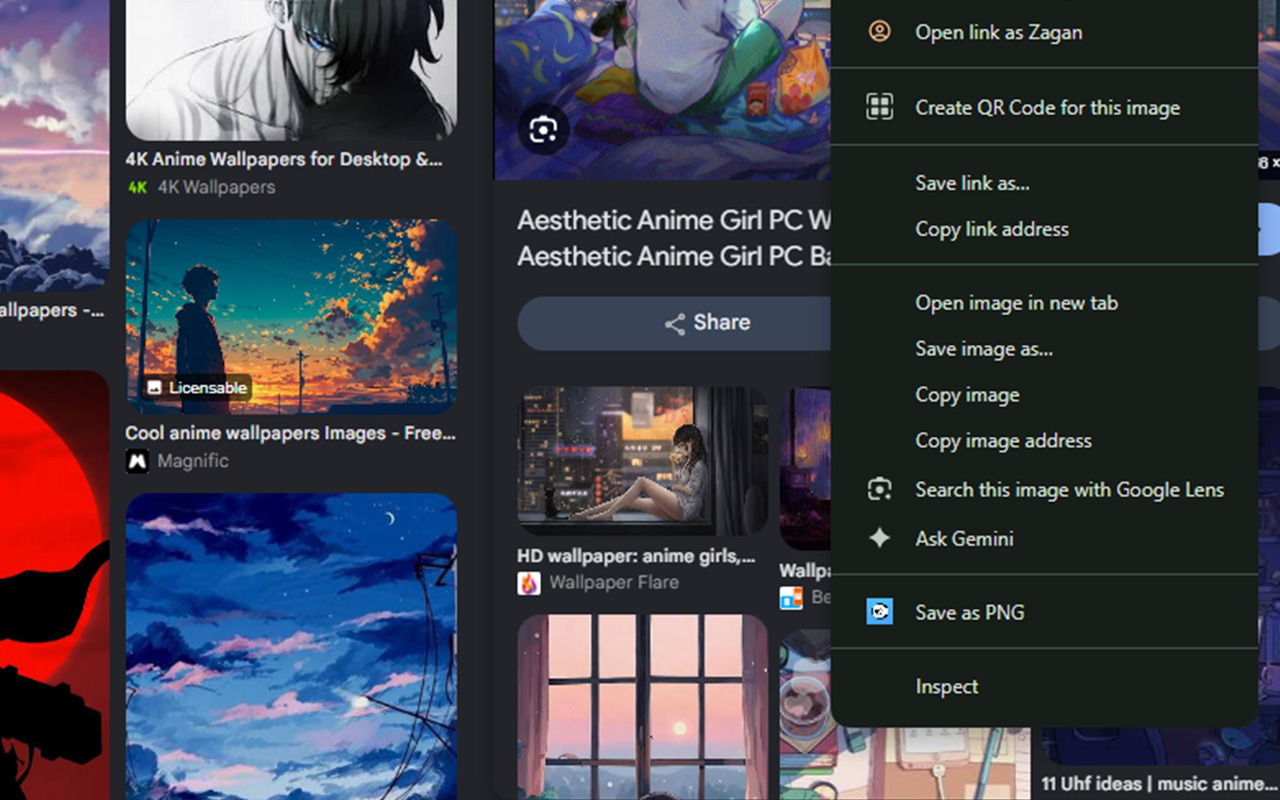
The extension adds a Save as PNG entry to the right-click menu on any image. When you click it, the background service worker fetches the image, decodes it with createImageBitmap, draws it onto an OffscreenCanvas, and calls convertToBlob({ type: 'image/png' }). The resulting PNG is handed to Chrome's downloads API, which opens the familiar save dialog so you choose exactly where it lands.
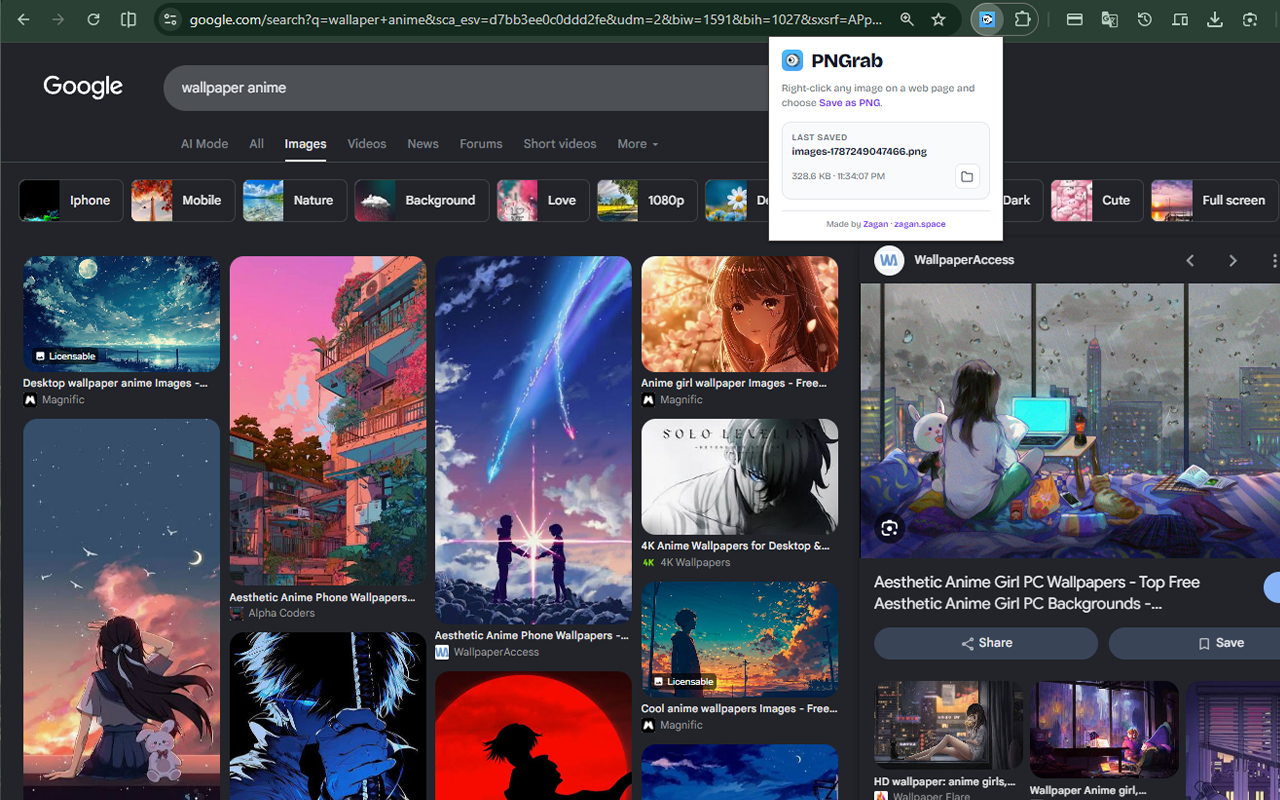
The popup keeps a small note of the last file you saved — its name, size, and time — and offers a Show in folderbutton so you can jump straight to it. If something goes wrong (a dead URL, an image too large, or one that won't decode), an in-page toast tells you what happened.
Privacy by design
Everything happens on your machine. The image is fetched, converted, and downloaded locally — it is never uploaded to a server, and PNGrab collects no analytics and transmits no user data. The only thing stored is the metadata of your last saved file (name, size, time, download id) in local storage, which is used solely to power the popup and is never sent anywhere.
Features
- One-click save — a "Save as PNG" item on every image's right-click menu.
- Format conversion — JPG, WebP, GIF, AVIF, BMP, SVG and more become PNG.
- Fully local — no uploads, no remote servers, no tracking.
- Last-saved card — the popup shows your most recent download with a "Show in folder" shortcut.
- Size limit — images up to 25 MB are supported (converted in-browser).
- Friendly errors — in-page toasts if a fetch fails or an image can't be decoded.
Permissions, and why
PNGrab asks for just three permissions, each tied directly to its single purpose:
contextMenus— to add the "Save as PNG" menu item.downloads— to save the converted PNG and reveal it afterward.storage— to remember the last saved file's metadata for the popup.<all_urls>host access — so it can fetch images from any site you are browsing.
Install
PNGrab is available on the Chrome Web Store. After installing, just right-click any image and choose Save as PNG. The full privacy policy lives at zagan.space/pngrab/privacy.